Installation
Install SDODS with one command on macOS, Linux or Windows — then the advanced paths for locked-down machines, containers and CI.
What the one-line installer actually does, how to watch it do it before you let it, where every
byte lands, the advanced paths for proxies, private certificate authorities, pinned versions,
containers and CI, and how to read sdods doctor when something is off.
Using an AI coding agent? Install SDODS:
Install the SDODS plugin in Claude Code: skills, subagents, commands and the MCP server.
/plugin marketplace add YarlisAISolutions/sdods-skills/plugin install sdods@sdods
Install
curl -fsSL https://sdods.com/install.sh | shPass options after -s --:
curl -fsSL https://sdods.com/install.sh | sh -s -- --workspace ~/my-tests --mcp claudeWith a package manager
The script is the front door because it works on a machine that has nothing. If you already run a package manager, these install the same software and let it handle upgrades.
| Command | Installs | Needs |
|---|---|---|
npm install -g @sdods/cli | the CLI | Node 22+ |
brew install yarlisaisolutions/sdods/sdods | the CLI | Homebrew, which pulls in node |
docker run ghcr.io/yarlisaisolutions/sdods-server | the server and web UI | Docker |
winget install SDODS.SDODS | the desktop app | Windows 10+ |
scoop install sdods | the desktop app | Scoop |
apt install sdods | the desktop app | Debian or Ubuntu, plus the repository below |
A channel is listed on the install page only once its manifest is actually published to that manager. The table here is the full set; the page shows the ones that work today, checked against each registry rather than declared. They are not always the same: winget is merged by Microsoft's reviewers on their schedule, and Homebrew refuses a formula whose packages were published less than a day ago.
npm
The CLI is a normal global package. This is exactly what the installer script does for you, minus the Node check, the browser download and the PATH shim:
npm install -g @sdods/cliBrowser engines are a separate download, because most API suites never need one:
sdods browsers install chromiumHomebrew
The tap holds the formula only; the software comes from npm. It depends on Homebrew's node
rather than vendoring one, so SDODS runs on the same Node as the rest of your toolchain:
brew install yarlisaisolutions/sdods/sdodsHomebrew asks you to trust a tap that is not one of its own the first time you install from it, and
prints the brew trust command to run. Reading the formula with brew info needs no trust;
installing does.
Docker
The image is the server and the web UI, with the browser engines already inside — this is the one channel that needs nothing installed on the host at all.
The image is published for linux/amd64 and linux/arm64, each built and tested on its own
architecture, so it runs natively on Intel, Apple silicon and arm64 servers such as Graviton. No
flag is needed:
docker run --rm -p 8080:8080 -v sdods-data:/data ghcr.io/yarlisaisolutions/sdods-serverTags up to 0.9.0 carry linux/amd64 only. Docker does not fall back to emulation for a missing
architecture — it refuses the pull, so on arm64 those tags fail with
no matching manifest for linux/arm64/v8. To run one of them there, ask for the platform
explicitly:
docker run --rm --platform linux/amd64 -p 8080:8080 -v sdods-data:/data ghcr.io/yarlisaisolutions/sdods-server:0.9.0Images published before the repository moved to YarlisAISolutions live at
ghcr.io/siri1410/sdods-server; pull from the new path.
Check which platforms a tag carries before you pull it:
docker buildx imagetools inspect ghcr.io/yarlisaisolutions/sdods-serverAny CLI command works as the argument, so the same image runs a suite in CI:
docker run --rm ghcr.io/yarlisaisolutions/sdods-server run -p demo-shop -e staging -l apiWindows: winget and Scoop
Both install the desktop app, not the CLI — they are the managers Windows users already have, and a GUI installer is what they are built to place. The CLI on Windows comes from npm or the PowerShell script.
winget install SDODS.SDODSScoop needs the bucket added once:
scoop bucket add sdods https://github.com/YarlisAISolutions/scoop-sdodsscoop install sdodsDebian and Ubuntu
Install a single .deb when you just want the app and not the update channel. Download it from
the download page first — the filename carries the version, so the
glob is what keeps this correct across releases:
sudo apt install ./SDODS-*-linux-amd64.debOr add the signed repository, which is what makes apt upgrade keep it current. Add the key
first — apt reads binary keyrings, so it is dearmoured on the way in:
curl -fsSL https://sdods.com/apt/sdods-archive-keyring.gpg | sudo tee /usr/share/keyrings/sdods-archive-keyring.gpg > /dev/nullecho "deb [signed-by=/usr/share/keyrings/sdods-archive-keyring.gpg] https://sdods.com/apt stable main" | sudo tee /etc/apt/sources.list.d/sdods.listsudo apt update && sudo apt install sdodsKeeping the desktop app current
The desktop app checks for a new release once its dashboard is up and every six hours after that. It downloads the update in the background, then asks: SDODS x.y.z is ready — Restart to update. Choose Later and the update waits: nothing installs when you quit, and the app asks again the next time it starts or when you pick SDODS ▸ Check for Updates…. Restarting stops the local server first, so a run in progress ends there; your workspace, database and results are untouched.
Who updates the app depends on how you installed it:
| Installed with | Updates |
|---|---|
| the Windows installer, or winget | in the app |
| the Linux AppImage | in the app |
the macOS .dmg | in the app once builds are signed; until then, a new download |
| the apt repository | sudo apt update && sudo apt upgrade |
a downloaded .deb | a new download, or add the repository above |
| Scoop | scoop update sdods |
On installs the app does not update, Check for Updates… says which of these applies instead.
To stop the background checks, untick SDODS ▸ Check for Updates Automatically; the manual check
still works. To switch the updater off entirely, for example on a machine whose software is
managed centrally, launch the app with SDODS_DESKTOP_NO_UPDATE=1 set. What each check found is
written to desktop.log (SDODS ▸ Open Logs Folder).
Node.js 22 or newer is the one prerequisite the installer will not install behind your back. It
prints the exact command for your platform, or you can pass --install-node to set up
fnm inside the SDODS directory.
See it before you run it
--dry-run prints every step it would take and changes nothing. On a machine you do not own, run
this first and read it.
curl -fsSLO https://sdods.com/install.sh
sh install.sh --dry-run --browsers chromium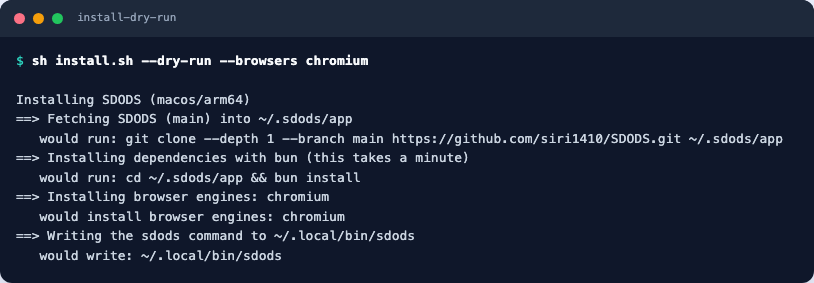
--version-check answers the other question — which versions and paths it resolved on this
machine — and then exits.
sh install.sh --version-check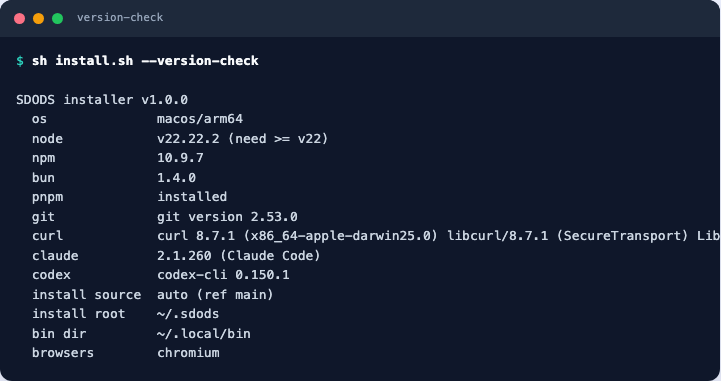
What it installs, and where
By default the installer installs the published @sdods/cli package globally with your package
manager. There is no SDODS source tree on your machine — the packages ship compiled.
| Path | What |
|---|---|
| your package manager's global directory | @sdods/cli and the @sdods/* packages it depends on |
~/.sdods/.bun | Bun, only when it was not already installed |
~/Library/Caches/ms-playwright · ~/.cache/ms-playwright | browser engines, in their shared cache |
Your shell profile is edited only when you pass --modify-path. The @sdods/* packages are about
9 MB; with their dependencies the global install comes to roughly 400 MB, and each browser adds
another 500 MB or so. Nothing is written to ~/.sdods at all on this path.
Your tests live wherever you put them: sdods init ~/my-tests scaffolds a workspace, demo project
included, and nothing outside that directory is yours to manage.
Installing from source instead
--source git clones the repository into ~/.sdods/app and installs every workspace's
dependencies there, then writes a shim to ~/.local/bin/sdods (Windows:
%LOCALAPPDATA%\SDODS\bin). That is the path for working on SDODS rather than with it, and it
needs about 1.5 GB. --install-node additionally puts fnm in ~/.sdods/.fnm.
The default never falls back to a clone on its own: if the registry cannot be reached the installer says so, rather than quietly downloading a source tree you did not ask for.
Options
Every flag has an environment-variable equivalent, so the same behaviour works in a Dockerfile or a CI step.
| Flag | Environment | Default | Meaning |
|---|---|---|---|
--version <ref> | SDODS_VERSION | latest release or main | git tag, branch or commit to install |
--dir <path> | SDODS_HOME | ~/.sdods | install root |
--bin-dir <path> | SDODS_BIN_DIR | ~/.local/bin | where the sdods command goes |
--pm bun|pnpm|npm | SDODS_PM | npm (bun for git) | package manager for the install; falls back to npm if it fails |
--browsers all|chromium|none | SDODS_BROWSERS | chromium | which browser engines to download |
--workspace <dir> | SDODS_WORKSPACE | none | also run sdods init <dir> when the install finishes |
--source git|npm|auto | SDODS_SOURCE | auto | auto/npm install published packages; git builds from a clone |
--mcp claude|codex|all | SDODS_MCP | none | register the MCP server with those CLIs |
--install-node | SDODS_INSTALL_NODE | off | install Node 22 through fnm when it is missing or too old |
--modify-path | SDODS_MODIFY_PATH | off | append the PATH line to your shell profile |
--yes | SDODS_YES | off | never prompt (also implied when CI is set) |
--uninstall | remove the command and the install root | ||
--dry-run | print every step, change nothing | ||
--verbose | SDODS_VERBOSE | off | show the output of every command |
--version-check | print the versions and paths it resolved, then exit | ||
--help | the option list |
Windows takes the same names as PowerShell parameters: -Version, -Dir, -BinDir, -Pm, -Browsers, -Workspace, -Source, -Mcp, -ModifyPath, -Yes, -Uninstall, -DryRun, -Verbose, -VersionCheck, -Help.
Exit codes and security notes are in Reference → Installer.
First run
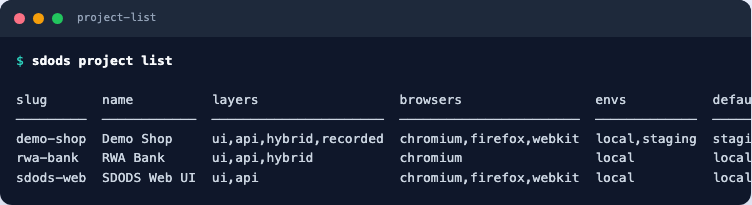
Projects are discovered from the current directory, so start in a workspace. The default install is
a global package with no source tree, so create one first — unless you passed --workspace,
which did it for you:
sdods init ~/my-tests      # skip if you installed with --workspace
cd ~/my-tests
sdods project list
~/.sdods/app exists only if you installed with --source git. On the default path there is no
such directory, and commands run from wherever your workspace is.
sdods run -p demo-shop -e staging -l api                        # API layer, no browser
sdods run -p demo-shop -e staging -l ui -b chromium -t @smoke   # UI smoke
sdods report --last --open                                      # HTML report and dashboard
Then point SDODS at something of your own:
sdods init ~/my-tests                    # new workspace with the demo project
sdods analyze /path/to/your-app --apply  # detect routes, API endpoints and test ids
Inside a clone, the same commands run through the package manager:
bun run sdods project list
bun run sdods config validate
Advanced installs
The one-liner is the happy path. These are the ones that come up on a work laptop.
Behind a proxy, or through a TLS-inspecting gateway
The installer honours HTTPS_PROXY, HTTP_PROXY and NO_PROXY, and so do git, npm and Bun once
they are exported. Corporate TLS interception needs the CA bundle as well, or the clone fails with
a certificate error that mentions a self-signed chain.
export HTTPS_PROXY=http://proxy.corp.example:8080
export NO_PROXY=localhost,127.0.0.1,.corp.example
export NODE_EXTRA_CA_CERTS=/etc/ssl/certs/corp-root-ca.pem
git config --global http.proxy "$HTTPS_PROXY"      # only if the clone still fails
curl -fsSL https://sdods.com/install.sh | shPin a version, and keep two side by side
--version takes any git ref, and --dir plus --bin-dir keep installs apart — useful when you
want to reproduce a run from last quarter without disturbing your daily install.
# the version the team is standardised on
curl -fsSL https://sdods.com/install.sh | sh -s -- --version v0.2.0

# a second install, in its own home, under its own command name
curl -fsSL https://sdods.com/install.sh | sh -s -- \
  --version main --dir ~/.sdods-main --bin-dir ~/.local/bin/sdods-main
Re-running the same command upgrades that install in place; it is not additive.
Unattended: CI, Dockerfiles and images you bake
CI=1 implies --yes, so nothing waits for a keypress. Choose the browser set deliberately: a
CI runner that only runs API scenarios should download nothing.
CI=1 SDODS_BROWSERS=none SDODS_MODIFY_PATH=1 \
  sh -c "curl -fsSL https://sdods.com/install.sh | sh"
In a Dockerfile, the environment-variable form keeps the layer readable and cacheable:
ENV SDODS_HOME=/opt/sdods SDODS_BIN_DIR=/usr/local/bin SDODS_BROWSERS=chromium SDODS_YES=1
RUN curl -fsSL https://sdods.com/install.sh | sh
The server image
The repository builds a container image on the official Playwright base, so the browsers are already inside it.
For a private registry, or before the first tagged release, build it from the checkout:
docker build -t sdods-server .
docker run --rm sdods-server doctor          # any CLI command works as the argument
docker run --rm -p 8080:8080 -v sdods-data:/data sdods-server   # the server and web UI
The entrypoint understands serve (the default), bootstrap, and anything else is passed
straight to the CLI. Deployment details are in Guides → Hosting.
Register the MCP server while you install
--mcp writes the client configuration for Claude Code or Codex as part of the install, so the
agent can drive SDODS immediately.
curl -fsSL https://sdods.com/install.sh | sh -s -- --mcp allWhat the agent may then do, and how to scope its token, is in Guides → Claude Code and Codex.
Check the install
sdods doctor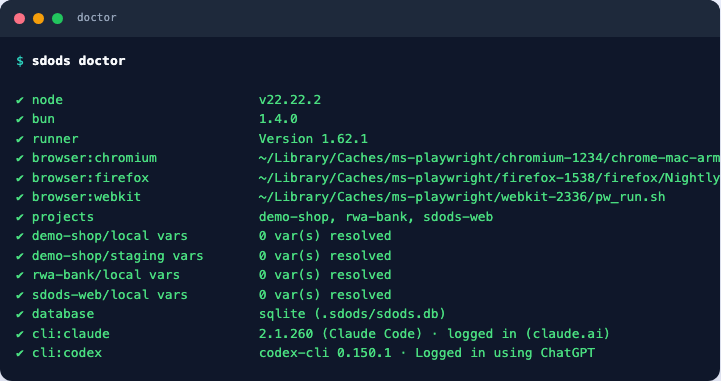
doctor continues past a failure so you get the whole picture in one pass, and --fix installs
missing browser engines. It is also the fastest way to answer “is my environment the problem?”
before opening an issue.
Upgrade and uninstall
curl -fsSL https://sdods.com/install.sh | sh                          # upgrade: same command
curl -fsSL https://sdods.com/install.sh | sh -s -- --version v0.2.0   # pin a release
curl -fsSL https://sdods.com/install.sh | sh -s -- --uninstall --yes  # remove
Uninstalling removes ~/.sdods and the command shim. Workspaces you created stay where they are, and the browser engine cache is shared with other tools, so remove that yourself if you want the space back.
To start the web UI over without reinstalling — remove every user, or wipe the platform database — see Reinstall or reset.
Troubleshooting
| Symptom | Fix |
|---|---|
Node v20 is too old | nvm use 22, fnm use 22, or re-run with --install-node |
sdods: command not found after installing | the bin directory is not on PATH; the installer printed the line to add, or re-run with --modify-path |
| Browsers fail to start on Linux | system libraries need root: sudo sdods browsers install --with-deps |
| Behind a corporate proxy | export HTTPS_PROXY; git and npm read it. Add git config --global http.proxy "$HTTPS_PROXY" if the clone still fails |
| Corporate SSL interception | point NODE_EXTRA_CA_CERTS at your CA bundle before running the installer |
| macOS quarantine | piping to sh is not affected; if you saved the file first, run xattr -d com.apple.quarantine install.sh |
| WSL | use the macOS/Linux one-liner inside WSL, not the PowerShell one |
Unknown project "demo-shop" | run from a workspace created by sdods init (or ~/.sdods/app, if you installed with --source git) |
| Install seems stuck | re-run with --verbose; the dependency install is the long step |
sdods: command not found after a Node switch | with fnm/nvm/volta, npm -g packages belong to the Node version active when you installed them. Re-install, or use the installer's bun path, which is version-independent |
An unexplained TypeError from a dependency | Node older than 22. It does not report itself — check node -v first |
Next steps
- The workshop — a real open-source application, onboarded and then exercised feature by feature
- Onboard an existing app
- Your first API test
- Use it from Claude Code or Codex